


Description
Webex Polling :

Empower all voices by engaging participants with polls, surveys, quizzes and Q&As
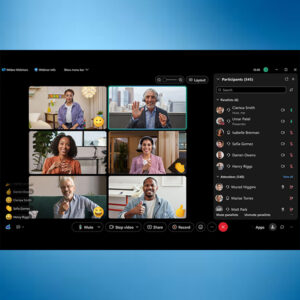
With Slido in Webex, you can engage with participants seamlessly, whether in the office or joining remotely, before, during and after meetings. Confirm participants’ understanding of the meeting topics and address any areas of uncertainty. Streamline decision making by crowd-sourcing ideas from everyone and ensuring quick alignment on decisions. Promote inclusivity in discussions by democratizing the conversation—allow participants to view and upvote each other’s questions. Empower everyone by creating a safe space for them to ask and answer questions anonymously. Improve decisionmaking by collecting feedback from everyone, not just the most vocal participants. Facilitate team bonding by allowing your participants to get to know their colleagues and coworkers better. Nurture transparency across the whole company by enabling anyone to ask and answer questions. Build trust between leaders and employees by allowing them to ask any questions and address the most critical ones.
The Webex polling feature allows meeting and webinar hosts to create and launch polls to gather real-time feedback from participants. This feature enables interactive engagement and can be used for various purposes, such as gauging understanding, collecting opinions, or even conducting quick quizzes. Users can create polls with different question types, including multiple choice (single or multiple answer) and short answer.

Key Features and Functionality:
- Creation and Editing:Polls can be created and edited directly within a Webex meeting or webinar.
- Question Types:Supports multiple choice (single or multiple answers) and short answer question types.
- Live Results:Results are displayed in real-time as participants respond, providing immediate feedback to the host.
- Time Limits:Polls can have a set time limit, ensuring timely responses
- Closing and Sharing:Hosts can close polls, share results with attendees, and even save poll results for later analysis
- Integration:Webex polling integrates seamlessly with other Webex features, such as screen sharing, allowing for clear presentation of poll questions.
- Polling Panel:A dedicated polling panel within Webex allows hosts to manage, create, and open polls.
- Saving and Opening Polls:Polls can be saved for future use and opened during different meetings or webinars
- Polling in Webex Events:The polling feature extends to Webex Events, allowing for polls within sessions or live stream features.
This video demonstrates how to conduct polls in Webex Meetings:
Energize your audience to join the conversation.
- Less monologue, more interaction.
- Create meaningful engagement
- Foster an inclusive culture
- Democratize discussions, empower everyone, and collect your audience’s feedback to improve decision-making.
- Build stronger connections
- Engage your audience with live polling.
- Give them options.
- Use a multiple-choice poll to capture everyone’s thoughts quickly.
- ask them to write their own Type in custom answers or comments with open-text feedback.
- Try a pop quiz
- Test their knowledge live with a timer and leaderboard.
- Get instant feedback
- Get a feel for how they liked the session and topics.
- Visualize keywords
- Display audience answers in a word cloud to see what’s most popular.
- Democratize prioritization
- Let the audience rank options based on their preferences.
- Create two-way dialogue with live Q&A.
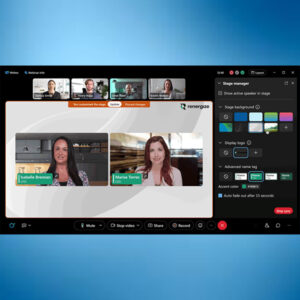
During the webinar, they walked through how to use polls in Webex Meetings. In this post, we’ll summarize the key features they covered. You can easily find and create polls during your Webex meeting by clicking the three dots on the right side of your toolbar. From there, you can select “polling” to open the polling tool.


Reviews
There are no reviews yet.